AWS Academy
In some labs, we will use AWS Academy. We have set up an AWS Academy Learner Lab, which gives you access to $50 in AWS credits.
Getting Started
Section titled “Getting Started”Once you receive your invite by email (sent to your OSU address), you will need to register and create a new account. Note: The AWS Canvas platform is different from OSU Canvas.
You can log in to AWS Academy here: https://www.awsacademy.com/
Click on “LMS” to access the platform.
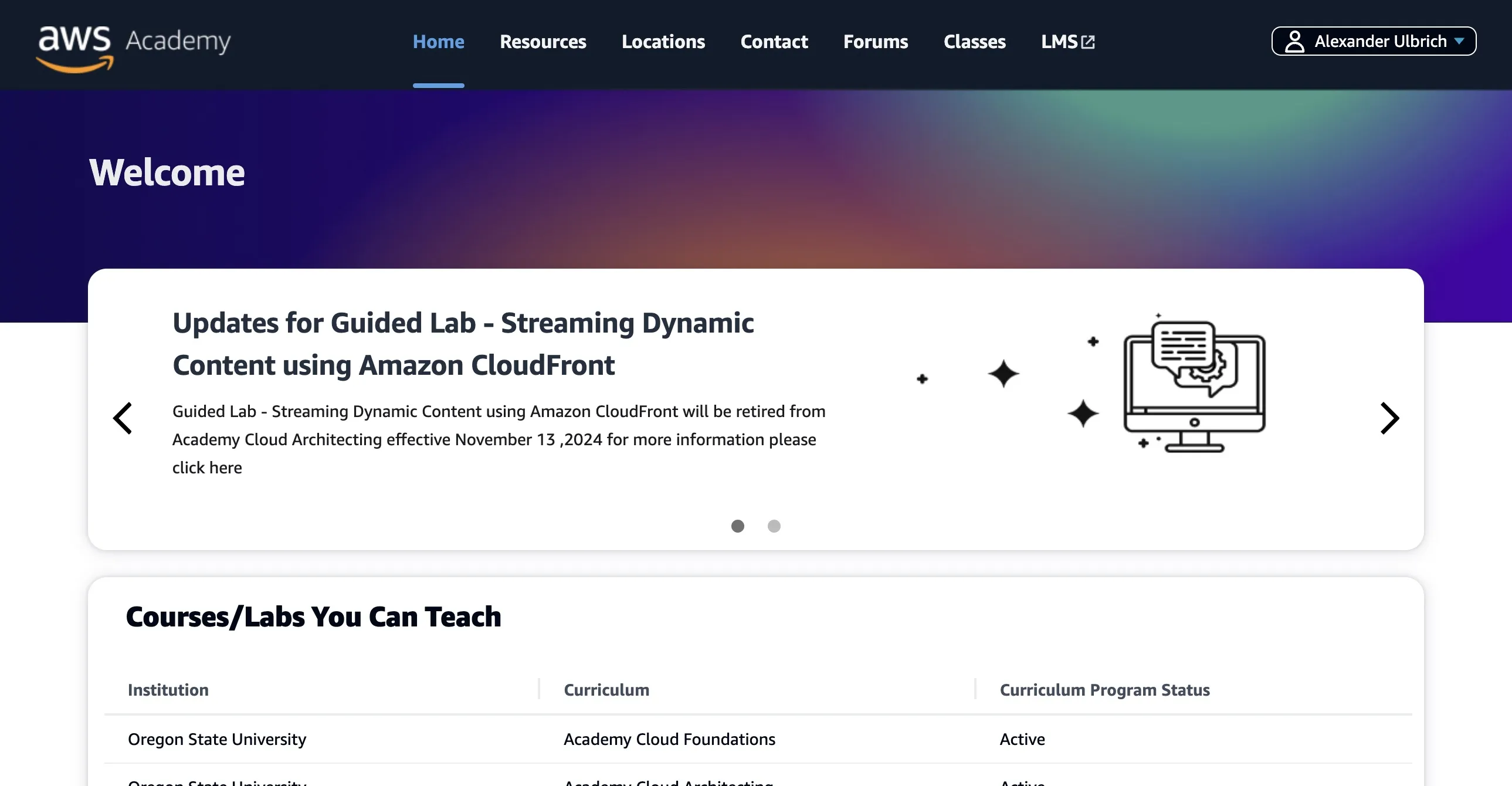
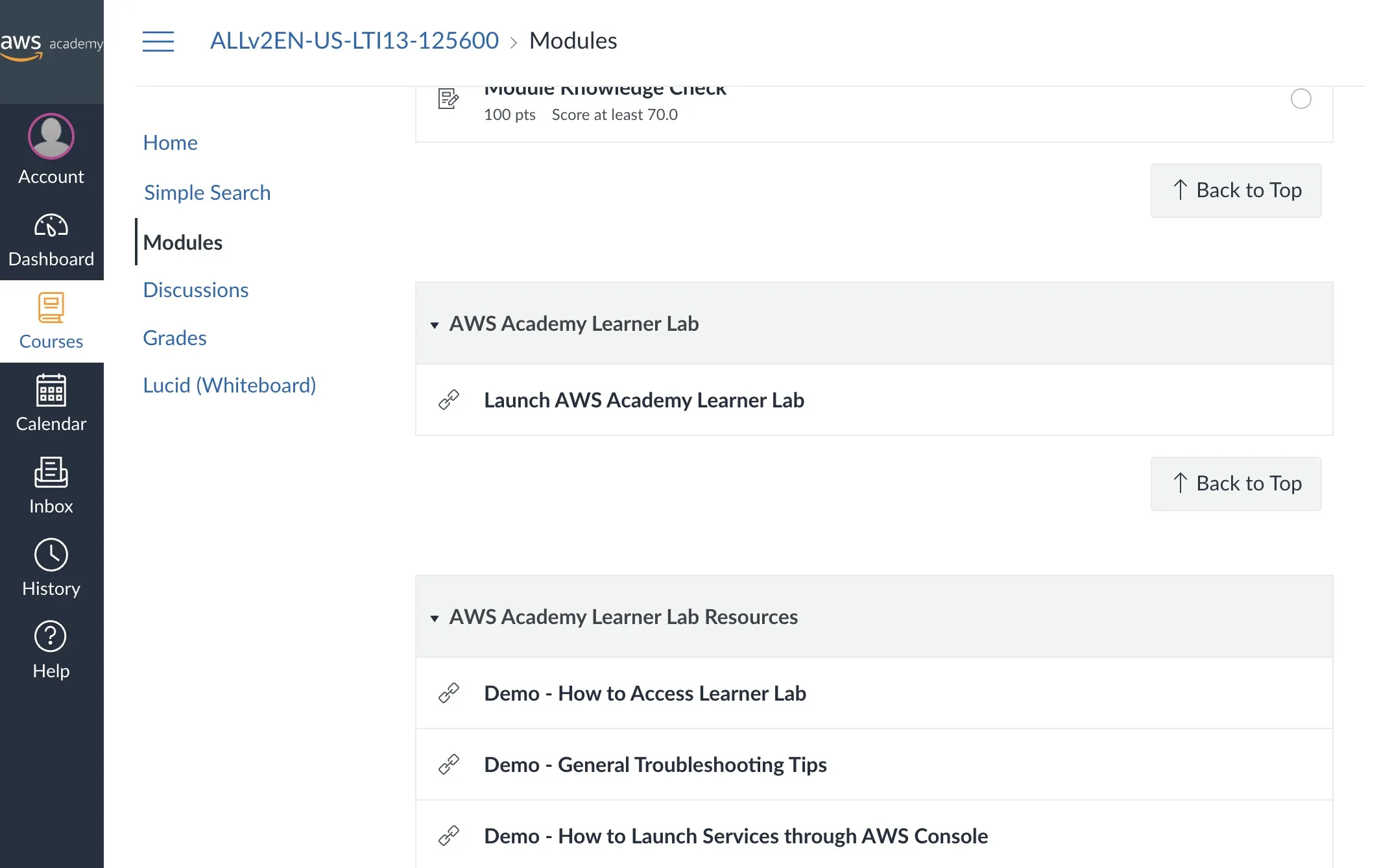
Navigate to the correct Learning Lab created for this course, then click on “Modules”, then “Launch AWS Academy Learner Lab”.
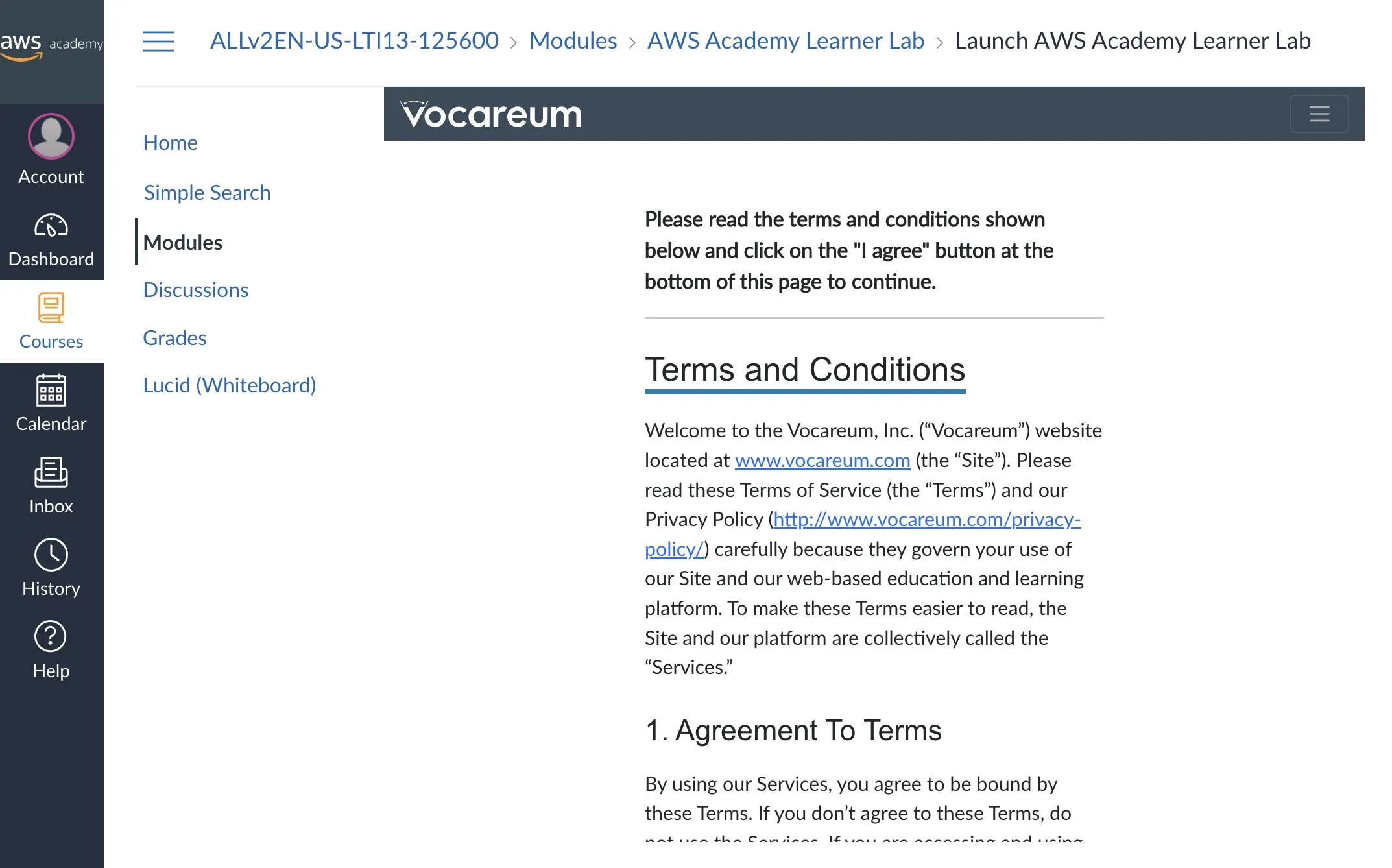
The first time you access the lab, you must agree to the Terms.
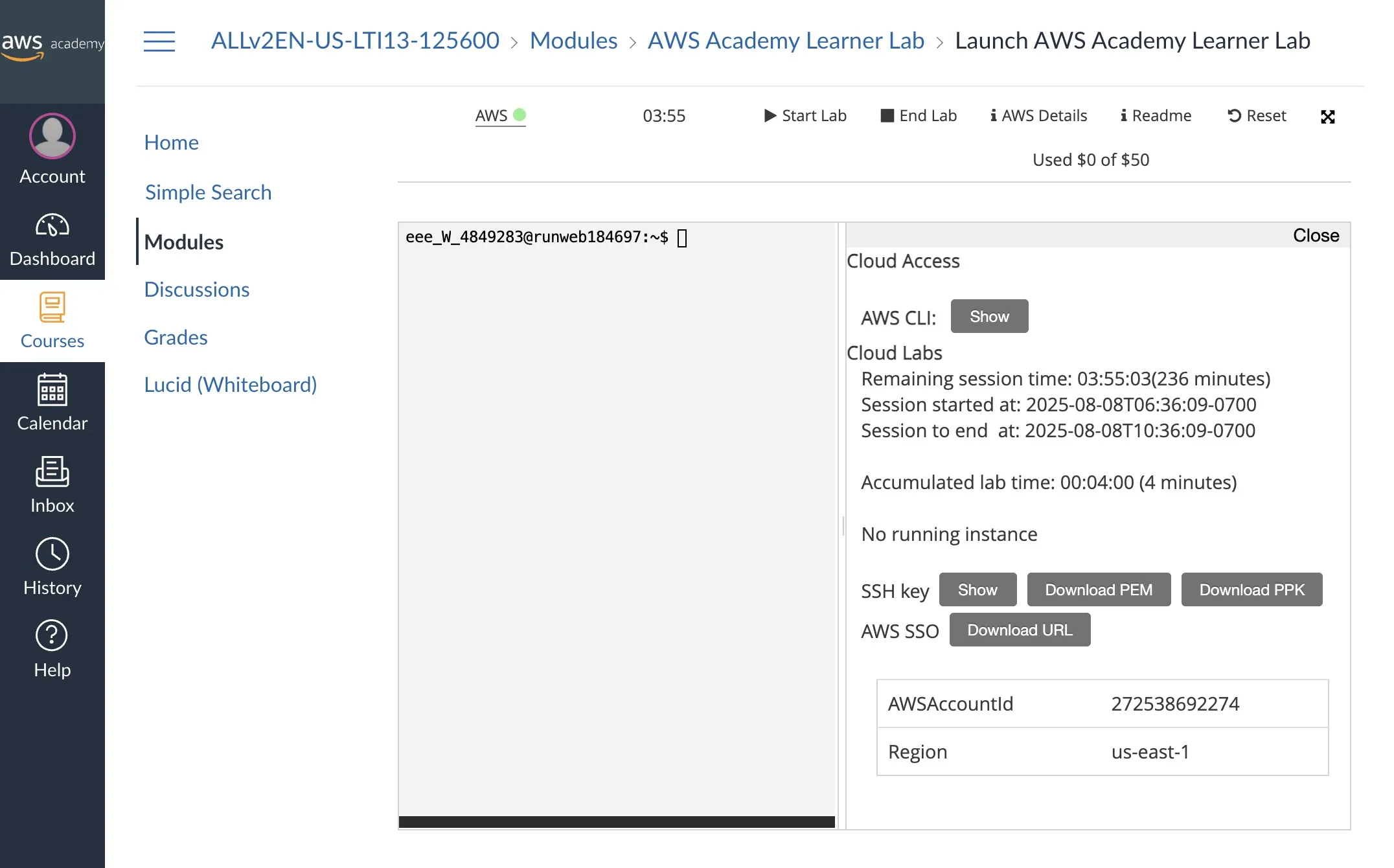
Here’s the Learner Lab page:
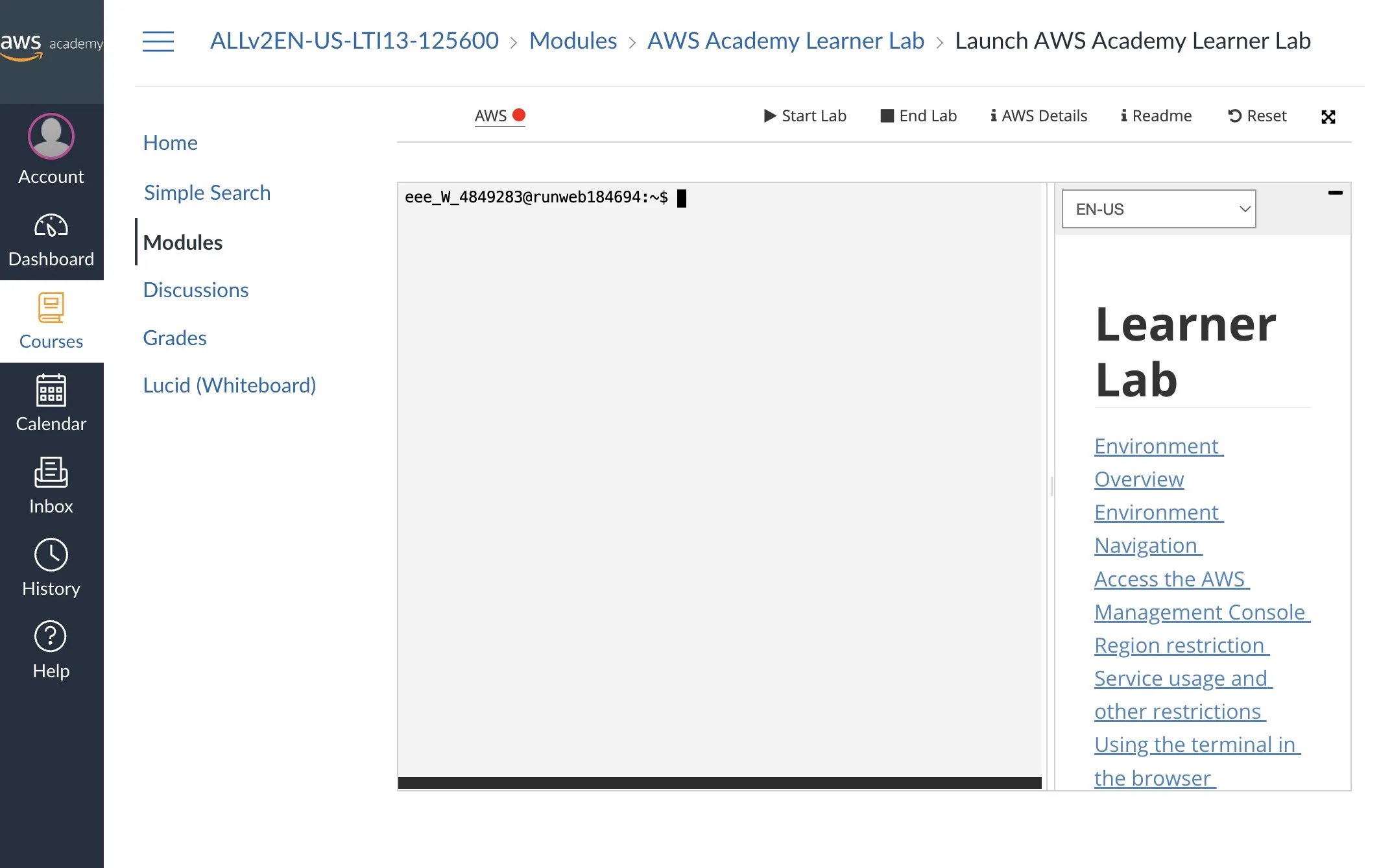
Notice the AWS 🔴 link in the top left corner: this means the lab is stopped.
To start the lab, click ▶️ Start Lab. This may take a few minutes the first time you run it.
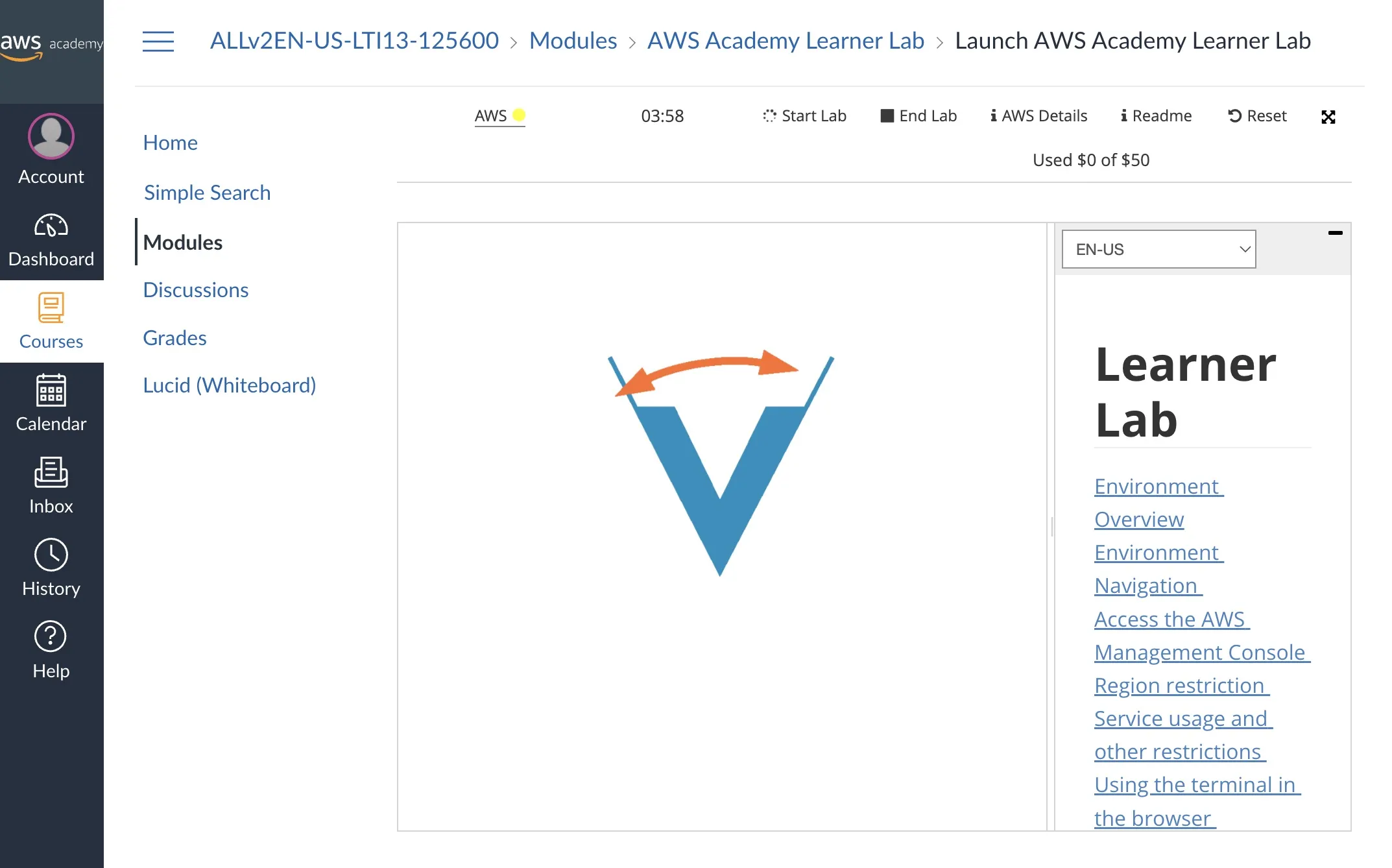
Once the lab has started, click the AWS 🟢 link in the top left corner to open your AWS account.
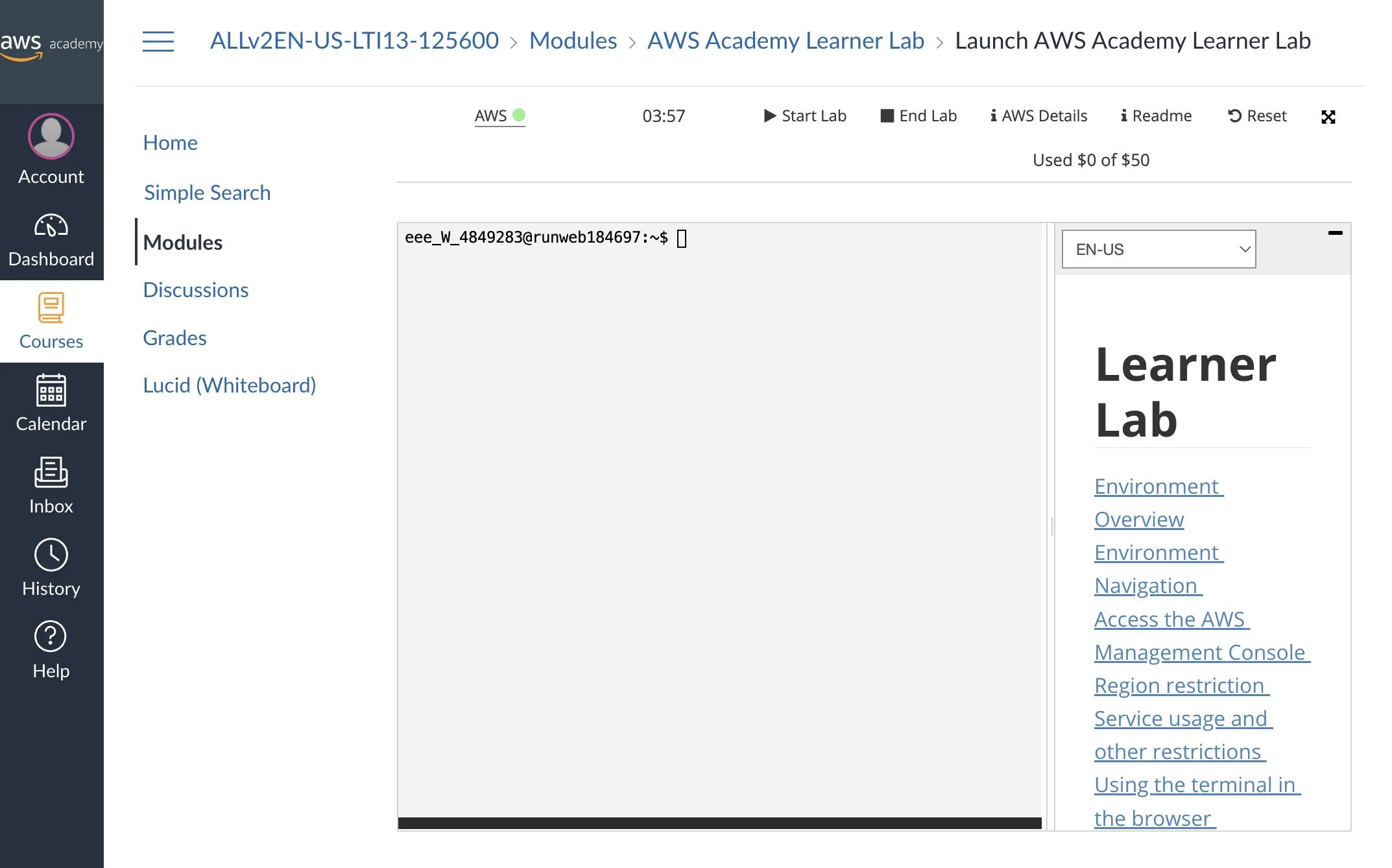
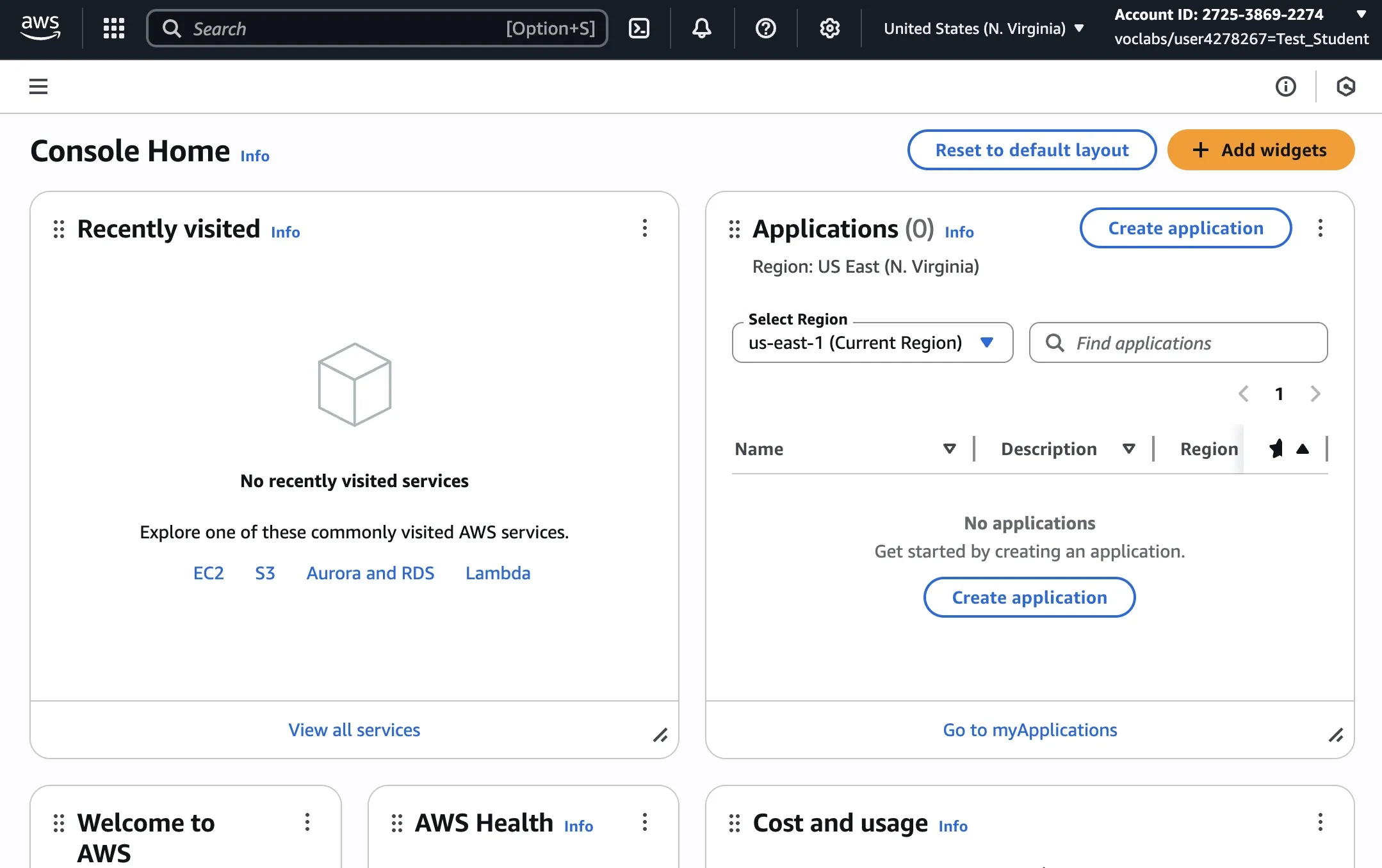
You’re all set!
Credit usage updates daily, not in real time. If you reach $50, your account is automatically deactivated and you won’t be able to complete assignments.
Your instruction team cannot control AWS Academy credits. Don’t forget to end your lab at the end of each session.
If you need to reset your account, you can use the ↩️ Reset option.
Region Selection
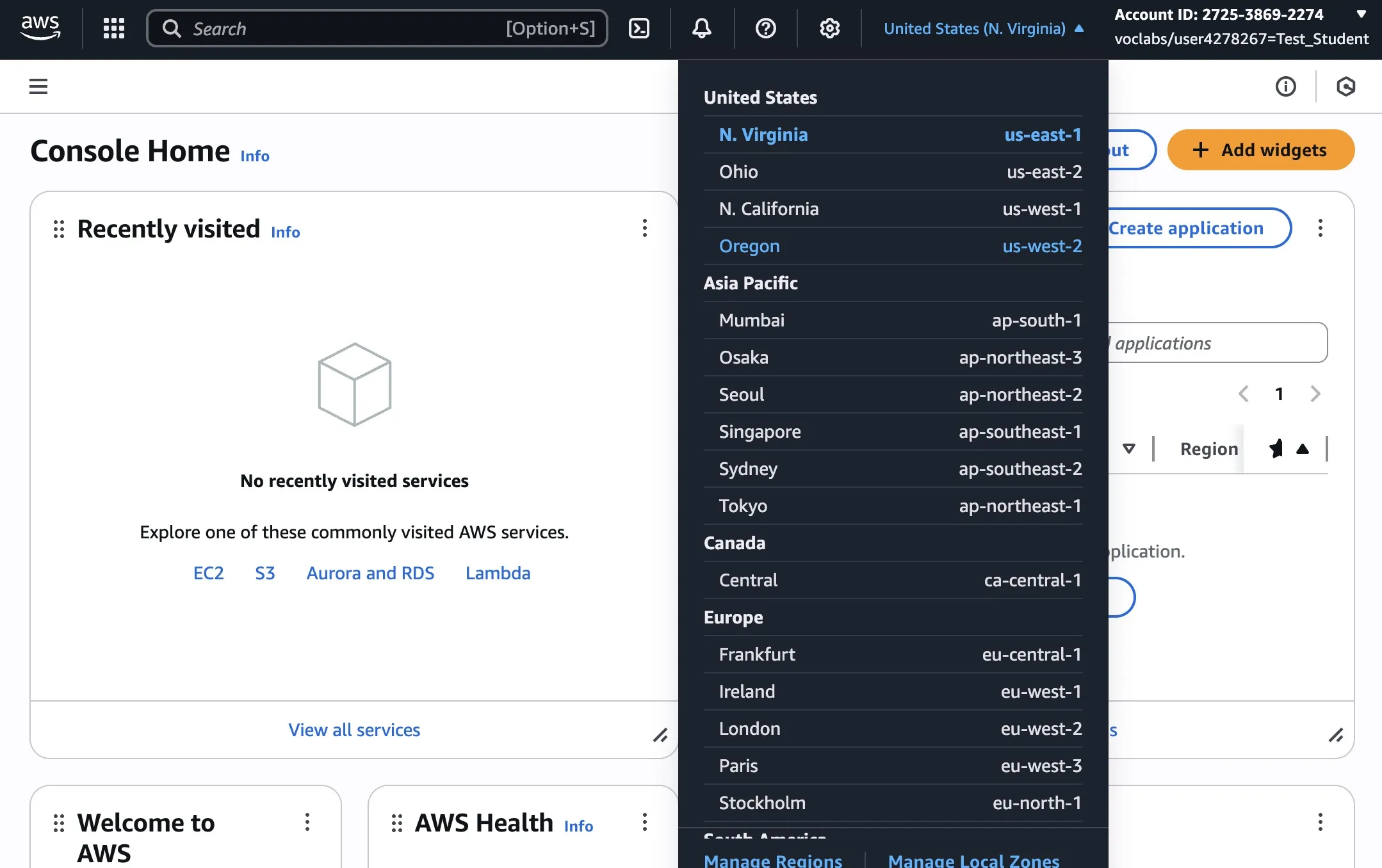
Section titled “Region Selection”AWS Academy Learner Labs support two regions: us-east-1 and us-west-2. Choose the region that is closest to you to minimize latency.
The us-west-2 region has caused permission issues for some students in the past. If so, use us-east-1.
EC2 Instance Types
Section titled “EC2 Instance Types”Most assignments will recommend the right instance type and size, but you are free to experiment. Note that some instance are much more expensive than others. In particular, running instances through AWS RDS (Relational Database Service) can be costly. Don’t forget to terminate RDS instances when you’re done with them.
In addition to the type and size, you can also choose the architecture of your instance. Labs should work with either x86 or arm architecture.
If arm instances fail to start, delete the instance and create one using x86 architecture.
Using the AWS CLI
Section titled “Using the AWS CLI”You can find AWS CLI credentials in the ℹ️ AWS Details tab of your Learner Lab (once your lab has started).
Credentials refresh every time you start the learner lab.
Using Windows
Section titled “Using Windows”If you use Windows, connecting to your Linux instance via SSH is trickier (it’s not built-in as on Unix-like systems). You have several options:
- Follow the guide here to SSH from Windows, and update permissions on your private key: Troubleshoot connecting to your instance - Amazon EC2
- Use a Linux VM for the lab. We recommend WSL.
Cannot Connect to Your EC2 Instance via SSH
Section titled “Cannot Connect to Your EC2 Instance via SSH”Ensure your EC2 instance and security group are configured to allow SSH connections.
See the AWS EC2 Troubleshooting guide for details: Troubleshoot connecting to your instance - Amazon EC2