Hardware Deep Dive
Modern computer hardware is evolving at a rapid pace, shaped by the demands of artificial intelligence (AI), sustainability, and ever-increasing performance needs. Today’s systems (from personal computers to hyperscale data centers) are more integrated, intelligent, and efficient than ever before. As a result, understanding the architecture and best practices behind CPUs, memory, storage, and server design is essential for anyone entering the field. This chapter will guide you through the latest trends and foundational concepts, focusing on how hardware choices impact reliability, scalability, and real-world job skills. By the end, you’ll be able to read a spec sheet, spot common pitfalls, and make informed decisions about modern platforms, whether you’re building a workstation, deploying servers, or planning for the cloud.
Big Picture Trends
Section titled “Big Picture Trends”The hardware landscape in 2025 is defined by several converging trends. AI accelerators and GPUs are now standard in both consumer and enterprise systems, driving demand for high-bandwidth memory and fast interconnects. Sustainability is a top priority, with energy-efficient designs, liquid cooling, and recyclable materials becoming industry norms. Storage continues to scale, with solid-state drives (SSDs) growing in capacity and complexity, while data integrity and security remain critical concerns. Finally, the line between PC and server hardware is blurring, as modular, scalable architectures power everything from edge devices to massive data centers.
- AI and machine learning workloads shape hardware choices at every level.
- Energy efficiency and sustainability drive design and purchasing decisions.
- Integration of CPU, GPU, and memory (SoC) increases performance but reduces upgradability.
- Storage reliability and data integrity (ZFS, Btrfs) are essential for modern workloads.
- Remote management and automation are standard in server environments.
Common Pitfalls
- Ignoring power and cooling requirements for high-performance components.
- Overlooking the importance of data integrity and backup.
- Assuming all modern systems are easily upgradeable; many are not.
CPU Sockets, Chipsets, and Platform Evolution
Section titled “CPU Sockets, Chipsets, and Platform Evolution”At the heart of every computer is the central processing unit (CPU), which connects to the rest of the system through a socket and chipset. The socket (such as LGA or PGA) determines which CPUs are compatible with a motherboard, while the chipset manages communication between the CPU, memory, storage, and peripherals. Over the past decade, the industry has shifted from split northbridge/southbridge architectures to highly integrated platforms, with memory controllers and PCI Express (PCIe) lanes now built directly into the CPU. This integration reduces latency and increases performance, but also means that the choice of CPU and chipset sets hard limits on system capabilities.
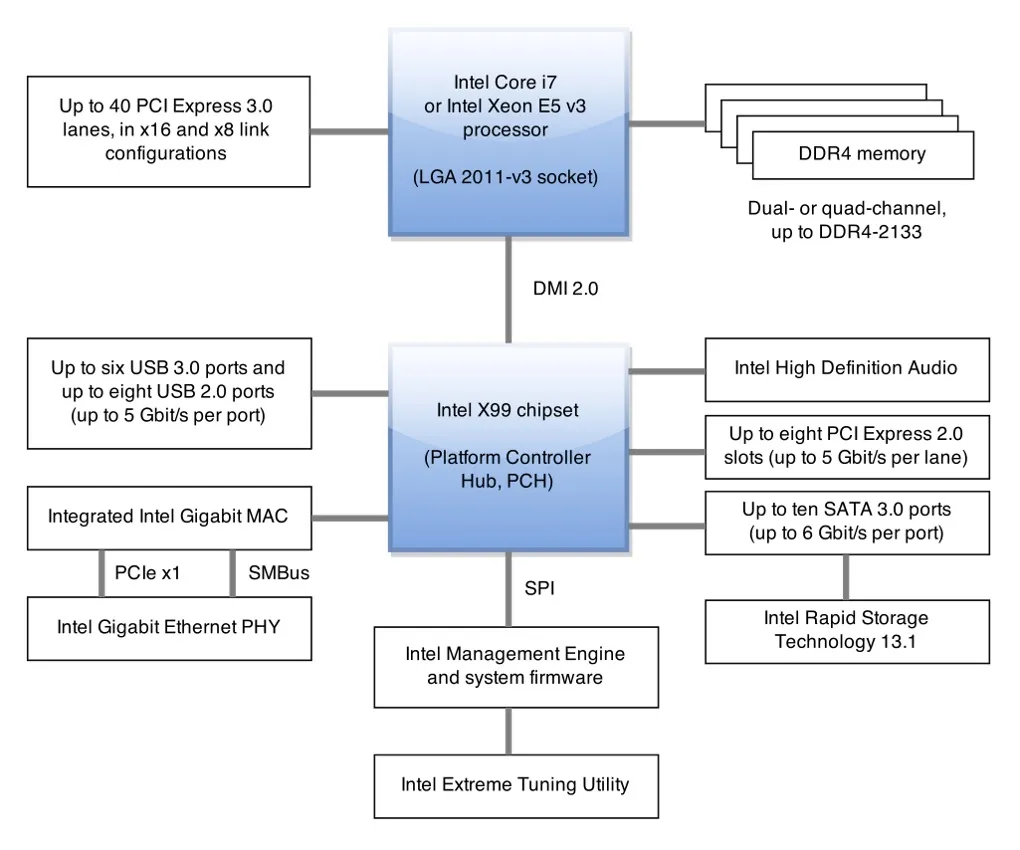
Modern Intel X99 from Wikipedia
Today’s platforms, including Apple Silicon, AMD APUs, and Intel’s latest Meteor and Lunar Lake chips, often combine CPU, GPU, and specialized accelerators (like AI engines) into a single package. This system-on-chip (SoC) approach boosts efficiency and simplifies design, but can limit future upgrades, especially for memory and storage, which may be soldered directly to the board.
Common Pitfalls
- Assuming chipset tier raises single-threaded performance (it doesn’t).
- Bending LGA socket pins by removing protective cover at an angle.
- Expecting BIOS updates to add support for fundamentally different future CPUs.
Memory Architectures: ECC, Buffering, and Unified Memory
Section titled “Memory Architectures: ECC, Buffering, and Unified Memory”Memory is the workspace of your computer, and its reliability and speed are crucial for both performance and data integrity. Modern systems use several types of memory modules, each with trade-offs.
Error-Correcting Code (ECC) memory adds extra bits to detect and correct single-bit errors, protecting against silent data corruption from cosmic rays or electrical noise.
Registered (buffered) DIMMs (RDIMM/LRDIMM) use a register to stabilize signals, allowing servers to support more memory modules at higher capacities. Unbuffered DIMMs (UDIMM) connect directly to the memory controller, offering lower latency but less scalability. Most platforms support either UDIMM or RDIMM, not both, and mixing them will prevent the system from starting.
Unified Memory Architecture (UMA) is increasingly common, especially in laptops and SoC-based systems. UMA allows the CPU and GPU to share a single pool of memory, reducing data duplication and improving efficiency for graphics and AI workloads. However, this also means that heavy GPU use can reduce the memory available for other tasks, and peak bandwidth is limited by the shared memory interface.
ECC and RDIMM are especially important in servers, virtualization hosts, and scientific computing, where data integrity and large memory footprints matter. In contrast, consumer desktops and laptops often prioritize lower latency and cost, using UDIMM and non-ECC memory.
Common Pitfalls
- Buying ECC UDIMMs for a board that only supports non-ECC UDIMM; extra bits are ignored.
- Attempting to mix RDIMM with UDIMM: system will not POST.
- Underestimating memory needs on UMA platforms (graphics workload reduces visible RAM).
Storage Media: HDDs, SSDs, and Form Factors
Section titled “Storage Media: HDDs, SSDs, and Form Factors”Understanding the physical characteristics of storage devices helps you make appropriate choices for performance, capacity, reliability, and cost.
Hard Disk Drives (HDDs)
Section titled “Hard Disk Drives (HDDs)”An HDD stores data magnetically on a stack of spinning platters read and written by ultra-precise read/write heads mounted on the end of a movable actuator arm. Modern drives position the heads only a few nanometers above the platter surface. Any foreign object or sudden shock can cause the head to contact the platter — a head crash — which permanently damages the magnetic surface and is typically unrecoverable. Modern drives mitigate this with lubricant and carbon protective layers on platters and free-fall sensors that park the heads automatically.
Common spindle speeds are 5,400 RPM (quiet, energy-efficient, common in laptops and cold-storage drives) and 7,200 RPM (mainstream desktop and server performance). Higher speeds exist for enterprise drives. Failures arise from mechanical wear (actuator, spindle motor), surface degradation, power component failure, or physical shock.
As of 2024 there are only three significant HDD manufacturers: Seagate, Western Digital (WD), and Toshiba. Drives are sometimes sold under legacy brand names (e.g., HGST, now a WD subsidiary).
Solid-State Drives (SSDs)
Section titled “Solid-State Drives (SSDs)”An SSD stores data in NAND flash memory cells with no moving parts. Because any cell can be reached in constant time, seek latency is effectively zero compared to HDDs. SSDs are lighter, silent, not susceptible to magnetic fields, and far less sensitive to physical shock. They can be used while being moved without risk of head crashes.
As of 2024, high-end NVMe SSDs exceed 5,000 MB/s sequential read and prices have fallen below $0.09/GB, making them increasingly competitive with HDDs for capacity.
SSDs fail primarily from power component failure or flash cell wear-out: each cell can only be programmed and erased a finite number of times. Firmware-level wear leveling spreads write operations across the entire drive to delay wear-out, and the TRIM command (issued by the OS) informs the SSD which blocks are no longer in use, allowing the controller to pre-erase them and maintain write performance over time.
Fragmentation is only relevant to HDDs: because the head must physically seek to non-contiguous locations, fragmented files slow random access. SSDs have no moving heads so fragmentation has no performance impact; in fact, defragmenting an SSD unnecessarily wears flash cells and should be avoided.
Drive Failure Rates and Warranty
Section titled “Drive Failure Rates and Warranty”Expected useful lifetime under continuous use is hard to predict. Studies (including a widely cited Google Labs study and ongoing Backblaze data) show roughly 2–9% of drives fail per year during the first three years, with a pattern of elevated early “infant mortality,” a stable middle period, and rising wear-out failure rates thereafter. Burn-in testing (running drives under load shortly after purchase) can catch early defects before deployment.
Consumer-grade drive warranties are typically only 2–5 years; enterprise drives often carry 5-year warranties and are rated for higher duty cycles. Warranty length is not a reliability guarantee but is a signal of the manufacturer’s confidence in the product tier.
Physical Form Factors
Section titled “Physical Form Factors”HDD and SSD physical dimensions are standardized by platter size (for HDDs) and have carried over to SSDs:
- 3.5-inch (actual ~4 × 5.75 × 1 inch): desktop and server drives.
- 2.5-inch (actual ~2.75 × 3.94 × 0.275–0.75 inch): laptops and 2.5” server bays. Both HDDs and SSDs use this form factor.
- mSATA: a miniaturized SATA SSD form factor, now obsolete, that was a precursor to M.2.
- M.2: a PCB-only standard (no enclosure) supporting widths from 12 to 30 mm and lengths from 30 to 110 mm (common sizes: 2242, 2260, 2280). M.2 slots can carry different interfaces — PCIe/NVMe, SATA, or even USB — depending on the slot’s key (B, M, or B+M) and the board’s wiring.
NVMe and the M.2 Ecosystem
Section titled “NVMe and the M.2 Ecosystem”Before NVMe, some high-end SSDs used PCIe electrically but with non-standard, vendor-specific drivers. NVMe (Non-Volatile Memory Express) standardized the host interface for PCIe-attached SSDs, so operating systems need only one common driver for all NVMe drives — analogous to how USB mass storage works across all USB devices. This standardization also freed SSD manufacturers from writing custom drivers for each product.
Storage Hierarchy: How Pieces Fit Together
Section titled “Storage Hierarchy: How Pieces Fit Together”When setting up storage, components are organized in layers:
- Storage devices (HDDs, SSDs, flash drives)
- Partitions: logical divisions of a physical device, each usable as if it were a separate device
- Volumes: storage areas built from one or more partitions or disks (including logical volumes from LVM)
- RAID arrays: collections of disks configured for redundancy, speed, or both, appearing to the OS as single (or multiple) logical devices
- Filesystems: translate the raw block storage exposed by a partition, volume, or array into the file and directory interface programs expect
When adding a new drive, always verify its identity (manufacturer, size, model) before any destructive operation — newly added drives are not necessarily the highest-numbered device, and some systems renumber existing drives after a reboot.
Data Integrity: RAID, ZFS, Btrfs, and Secure Storage Practices
Section titled “Data Integrity: RAID, ZFS, Btrfs, and Secure Storage Practices”Storing data reliably is a core challenge in modern computing. Storage stacks are built in layers, with each layer adding isolation or resilience. Traditional Redundant Array of Independent Disks (RAID) combines multiple drives for redundancy or performance, but does not provide end-to-end data integrity; silent errors can go undetected, especially during rebuilds. Modern filesystems like ZFS and Btrfs use copy-on-write and checksumming to detect and correct errors, offer built-in redundancy, and support features like snapshots and scrubbing for ongoing health checks.
RAID levels serve different goals:
- RAID 0 (striping): data is split across drives for speed — no redundancy; any drive failure loses all data.
- RAID 1 (mirroring): identical data on two or more drives — full redundancy but capacity equals the smallest drive.
- RAID 5 (striping with parity): data and a single parity block are distributed across three or more drives — survives one drive failure.
- RAID 6: like RAID 5 but with two parity blocks — survives two simultaneous drive failures.
- RAID 10 (1+0): mirrored pairs that are then striped — good performance and redundancy but requires at least four drives and wastes half capacity.
How parity works (RAID 5/6): parity is computed using XOR across the data blocks on each stripe. If drive B fails, its content can be reconstructed as XOR(block A, block C, parity). For example, if bit 1 of block A is 1, block C is 1, and parity is 0, then the missing bit 1 of block B = XOR(1, 1, 0) = 0. RAID with a single parity disk tolerates one failure; double parity (RAID 6) tolerates two.
Software vs. Hardware RAID
Section titled “Software vs. Hardware RAID”| Software RAID | Hardware RAID | |
|---|---|---|
| Where it runs | OS kernel (e.g., Linux mdadm) | Dedicated RAID controller card |
| CPU usage | Uses host CPU for parity/rebuild | Offloaded to controller |
| Cost | Free (included in OS) | More expensive |
| Flexibility | Easy to move arrays between systems | Vendor lock-in; controller failure can trap data |
| Boot support | Depends on OS/bootloader | Usually supports booting from array |
| Best for | NAS, small/medium workloads | Performance- and reliability-critical environments |
Software RAID is often the better choice for home labs and small deployments using ZFS or Btrfs, which provide their own RAID-like implementations (RAID-Z, mirrors) with the added benefit of checksumming. Hardware RAID is common in enterprise servers where consistent write performance and boot-from-array support matter.
Storage Management Layers
| Feature | RAID (Traditional) | ZFS/Btrfs |
|---|---|---|
| Redundancy | Yes (RAID 1/5/6/10) | Yes (mirrors, RAID-Z, etc.) |
| Performance | Yes (RAID 0/10) | Yes (varies by config) |
| Checksumming | No | Yes (detects/corrects errors) |
| Silent Data Corruption | Possible | Detected & self-healed |
| Snapshots | No | Yes |
| Online Expansion | Limited | Yes (with caveats) |
| Ease of Management | Moderate | Moderate (learning curve) |
| Backup Replacement | No | No |
Secure decommissioning is essential when retiring drives. For SSDs, use controller-native Secure Erase or sanitize commands to reset internal mappings. For hard drives, a single overwrite plus verification is usually sufficient, but compliance may require multiple passes. For highly confidential data, physical destruction (shredding, melting, degaussing) after cryptographic erasure is best practice.
S.M.A.R.T. (Self-Monitoring, Analysis and Reporting Technology) attributes give early warning of predictable failures for both HDDs and SSDs. Key attributes include:
- Scan error count: errors found during surface scans
- Reallocation count: sectors found defective and moved to spare areas
- Off-line reallocation count: reallocations detected during background self-tests
- Number of sectors on probation: unstable sectors under observation before reallocation
A Google Labs study found that a nonzero value in any of these fields raises the probability of drive failure within 60 days by a factor of 39×, 14×, 21×, or 16× respectively. Monitor trends over time rather than reacting to isolated single values; a steadily climbing count warrants a fresh backup and a replacement plan. Tools: smartmontools on Linux/macOS, or vendor-supplied utilities.
Drive wiping: deleting a file merely marks its blocks as free — the data remains on the drive and can be recovered with standard tools. A quick format is not a secure erase. Proper methods:
- ATA Secure Erase (HDDs): performs as many overwrite passes as the drive’s firmware requires to eliminate magnetic remnants.
- ATA Sanitize / NVMe Format (SSDs): resets the controller’s internal flash mapping, effectively making all data unreadable.
- Software overwrite (HDDs): writing zeros or random data across the entire drive is usually sufficient for compliance; however, this may miss remapped (reallocated) sectors.
- Physical destruction: shredding, drilling, degaussing, or disassembly with strong magnets. The only certain method for highly classified data, and necessary when the drive’s erase command is known to be buggy.
Note that some SSDs have known firmware bugs in their erase commands that leave data intact. When in doubt, physically destroy the flash chips.
Operational best practices include maintaining separate, versioned, offline or offsite backups: redundancy is not a substitute for backup. Schedule regular scrubs (ZFS/Btrfs) to catch errors early, label drive bays for easy replacement, and monitor SMART data for signs of impending failure.
Common Pitfalls
- Treating RAID as protection against accidental deletion or ransomware.
- Expanding arrays without documenting original disk order.
- Skipping scrubs, allowing silent corruption to accumulate.
- Assuming a quick format is a secure erase.
Connector and Component Speeds
Section titled “Connector and Component Speeds”The speed of your system is often limited by its slowest component. Modern connectors and buses (such as SATA, NVMe, PCIe, USB, and Thunderbolt) each have their own peak bandwidths, which determine how quickly data can move between storage, memory, and peripherals. For example, SATA III tops out around 550 MB/s in real-world use, while NVMe PCIe Gen4 x4 can reach 7 GB/s, and Gen5 x4 up to 14 GB/s (though thermal throttling is a risk at these speeds). PCIe 4.0 x16 slots for GPUs can deliver up to 32 GB/s, and memory bandwidth continues to climb with DDR5.
SATA, SAS, and PCIe: Storage Interface Comparison
Section titled “SATA, SAS, and PCIe: Storage Interface Comparison”The three main storage interfaces have different performance, cost, and use-case profiles:
| Interface | Pros | Cons |
|---|---|---|
| SATA | Low cost; widely available; both HDD and SSD support | Slower (up to ~6 Gb/s); limited scalability |
| SAS | Lower latency; high performance (12–22.5 Gb/s); full-duplex; better RAID efficiency | More expensive than SATA; rare in consumer hardware (requires a SAS controller) |
| PCIe (NVMe) | Very low latency; very high performance (32 Gb/s+) | More expensive; high-end drives require active cooling |
Full-duplex means SAS can read and write simultaneously on the same link, unlike SATA which is half-duplex. This matters in high-throughput server workloads where concurrent reads and writes are common.
PCIe/NVMe drives operate at full PCIe speeds; they are almost always SSDs. SATA and SAS SSDs exist and are preferred for high-density servers where per-drive cost and backplane compatibility matter more than peak speed. For large bulk storage, HDDs remain cost-effective on both SATA and SAS.
Hot-swapping (replacing a drive without powering down the system) is supported on SAS and enterprise SATA backplanes and is essential in production environments. Consumer SATA typically does not guarantee safe hot-swap.
Direct-Attached, Network-Attached, and Storage Area Networks
Section titled “Direct-Attached, Network-Attached, and Storage Area Networks”- Direct-Attached Storage (DAS): storage connected directly to a single host (internal drives, external USB/eSATA enclosures). Fastest access; no network overhead; accessible only to the attached host.
- Network-Attached Storage (NAS): a device (or system) that presents storage over a network as a file server (SMB, NFS). Multiple clients can access the same data; simpler to manage than a SAN; slightly higher latency than DAS.
- Storage Area Network (SAN): a dedicated high-speed network (Fibre Channel, iSCSI, NVMe-oF) connecting hosts to block-level storage. Appears to each host as a locally attached disk; used in enterprise environments for virtualization, databases, and high-availability clustering.
It’s important to match your components to your actual workload. Upgrading to a faster SSD won’t help if your data source is still limited by SATA speeds. Similarly, high-speed USB and Thunderbolt ports are only as fast as the devices you connect.
Server and Data Center Design: Availability, Efficiency, and Scale
Section titled “Server and Data Center Design: Availability, Efficiency, and Scale”As you move from single workstations to servers and data centers, priorities shift toward availability, manageability, density, and predictable power and cooling. Server hardware adds features like ECC RDIMM/LRDIMM, multi-socket support, hot-swap backplanes, redundant power supplies and fans, and a Baseboard Management Controller (BMC) for out-of-band control (such as remote power cycling and KVM access). Storage is often attached via SAS/SATA expanders, Host Bus Adapters (HBAs, ideally in IT mode for ZFS/Btrfs), or high-density NVMe backplanes.
A complete data center deployment involves more than just servers. The full hardware stack includes:
- Racks (typically 42U standard enclosures)
- Cabling (structured copper and fiber runs, cable management arms)
- Cooling and ventilation (CRAC units, hot/cold aisle containment, liquid cooling)
- Power: branch circuits, PDUs (power distribution units), and Uninterruptible Power Supplies (UPS) to bridge brief outages and give systems time for a clean shutdown during extended ones
- Network infrastructure (top-of-rack switches, spine/leaf fabric, out-of-band management network)
- Servers themselves (compute, storage, and GPU nodes)
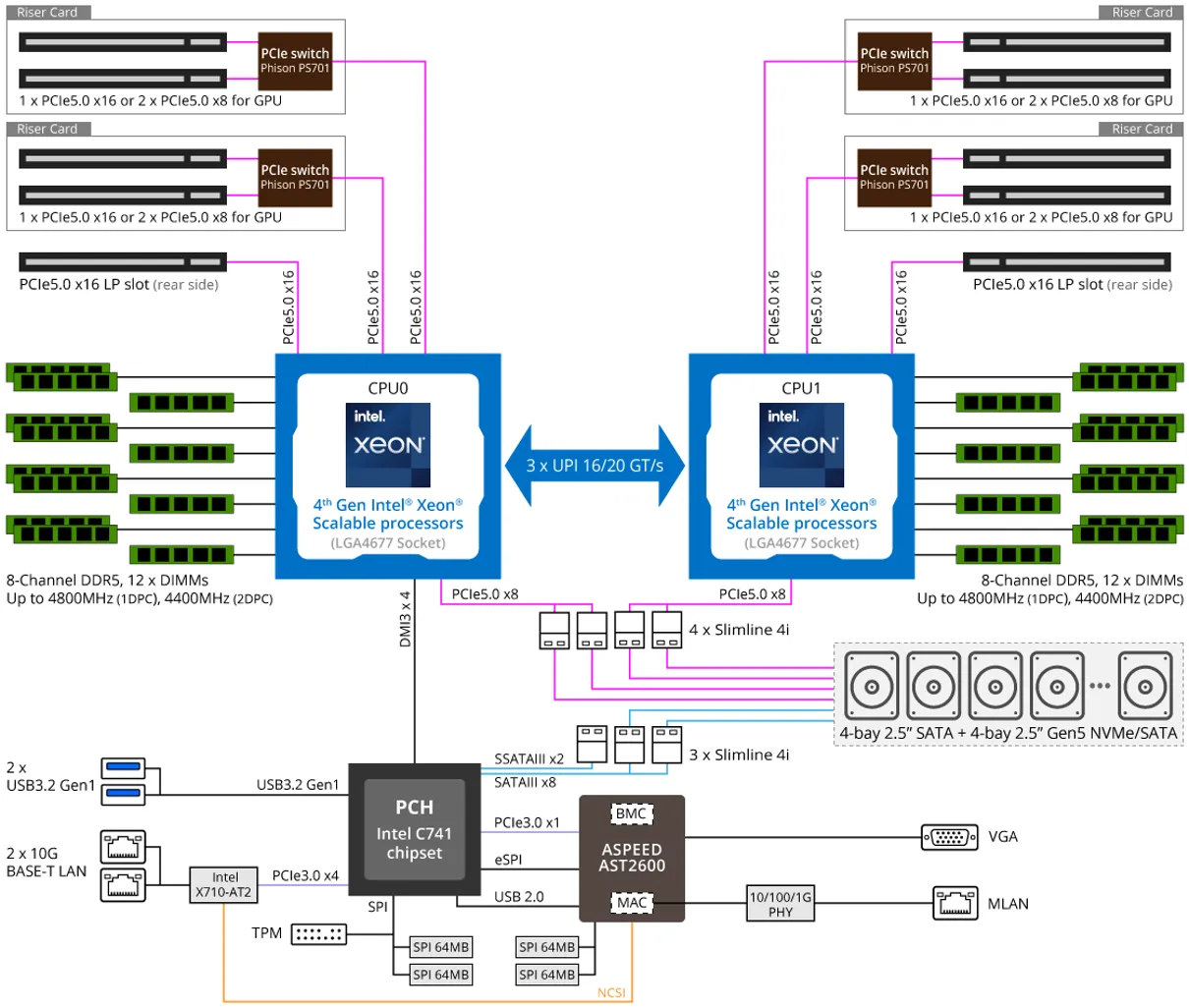
2U HPC/AI Server G293-S41-AAP1 from GIGABYTE
Server form factors include rackmount (1U/2U/4U), blade (ultra-dense, shared power/network), and tower (quiet, serviceable for edge or small office). Modern data centers use racks measured in U (1U ≈ 1.75”), enforce hot/cold aisle airflow, and plan power using an 80% derating rule for continuous load. Storage may be pooled and disaggregated over high-speed fabrics, and remote management is standard.
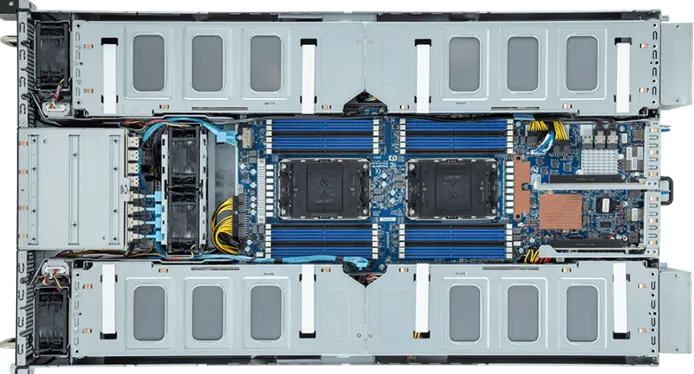
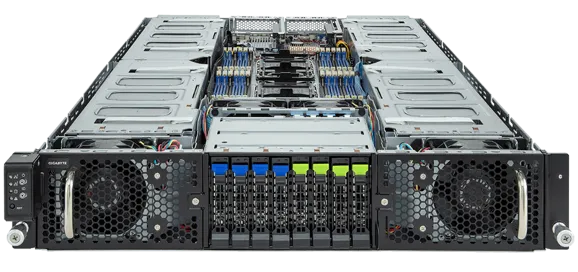
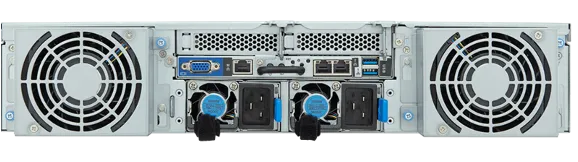
2U HPC/AI Server G293-S41-AAP1 from GIGABYTE
Key concepts include N+1 redundancy (extra power/fan units for resilience), hot-swap components to minimize downtime, Non-Uniform Memory Access (NUMA) for memory locality, and strict airflow management. Always verify component compatibility, size power for growth, and document rack layouts for future expansion.
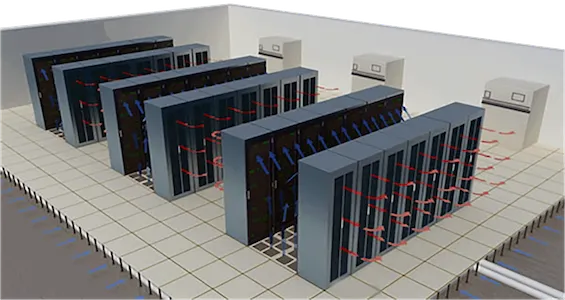
Server Racks Organisation to Maximize Airflow
Common Pitfalls
- Mixing UDIMM with RDIMM: no POST.
- Deploying side-to-side airflow gear without proper ducting: overheats.
- Ignoring NUMA pinning: performance drops in dual-socket nodes.
- Underestimating power density: tripping circuits during simultaneous spin-up.
AI Accelerators and Sustainable Hardware
Section titled “AI Accelerators and Sustainable Hardware”AI and machine learning workloads are now a major driver of hardware innovation. Dedicated accelerators (such as NVIDIA Tensor Core GPUs, Google TPUs, and custom ASICs) are increasingly common in both workstations and servers. These devices require high-bandwidth memory, fast PCIe or NVMe interconnects, and robust cooling solutions. As a result, system design must account for the power, thermal, and data movement needs of these accelerators.
Sustainability is also at the forefront of hardware design. Energy-efficient CPUs and GPUs, liquid cooling, and recyclable materials are now standard in enterprise deployments. Data centers are adopting renewable energy, optimizing airflow, and using advanced monitoring to reduce their carbon footprint. For job seekers, familiarity with these trends is a valuable skill.
Common Pitfalls
- Failing to plan for the power and cooling needs of AI hardware.
- Overlooking the importance of sustainability in procurement and design.
Quick Recap
Section titled “Quick Recap”- Modern hardware is shaped by AI, integration, and sustainability trends.
- CPU and chipset choices set hard limits on system capabilities and upgradability.
- ECC and RDIMM are essential for data integrity in servers; UMA is common in SoCs.
- HDDs use spinning platters and are vulnerable to physical shock; SSDs use flash with no moving parts. Both fail — plan for it.
- Drive failure rates are roughly 2–9%/year; consumer warranties are 2–5 years. Monitor SMART trends and act before failure.
- RAID provides redundancy (or speed) but not backup; ZFS and Btrfs add checksumming and self-healing that traditional RAID lacks.
- RAID parity uses XOR to reconstruct a failed drive; software RAID is flexible and free, hardware RAID offers performance and boot support.
- SATA is cheap and common; SAS is full-duplex and lower-latency for servers; PCIe/NVMe is fastest but most expensive.
- DAS is fastest and simplest; NAS adds network-accessible file sharing; SAN provides block-level storage over a dedicated fabric.
- Secure drive disposal requires ATA Secure Erase or physical destruction — a quick format leaves data recoverable.
- Connector speeds matter; always match components to real workloads.
- Data centers require racks, structured cabling, cooling, UPS, network fabric, and servers — plan all layers together.
- Server and data center design prioritize availability, manageability, and efficiency.
- AI accelerators and sustainable practices are now core job skills in hardware roles.
Further reading
Section titled “Further reading”- Crash Course Computer Science #19: Memory and Storage (YouTube)
- Crash Course Computer Science #20: Files and File Systems (YouTube)
- Computer data storage — Wikipedia
- Elastic Cloud Enterprise hardware prerequisites
- Rack Unit Converter — RackSolutions
- Troubleshooting slow servers: CPU, RAM, and Disk I/O (Red Hat Enable Sysadmin)
- A Day in the Life of the Data Centre — Racking Servers (YouTube)